Install and link your Mac
Install from the Mac App Store or choose the direct Mac installer on the download page. Open Pastefrog and follow its sign-in and linking instructions. Every plan needs an account, including Free.
If you already use Pastefrog on your phone, use that phone to scan the QR code on your Mac. If you start on the Mac, sign in with Google or an email code and save your recovery key. When you add a phone, the Mac still shows the code and the phone scans it.
Finish the permission prompts before testing a copy. Pastefrog saves and syncs nothing until your Mac is signed in and linked. Keep your recovery key somewhere private that you can reach if you lose your devices.
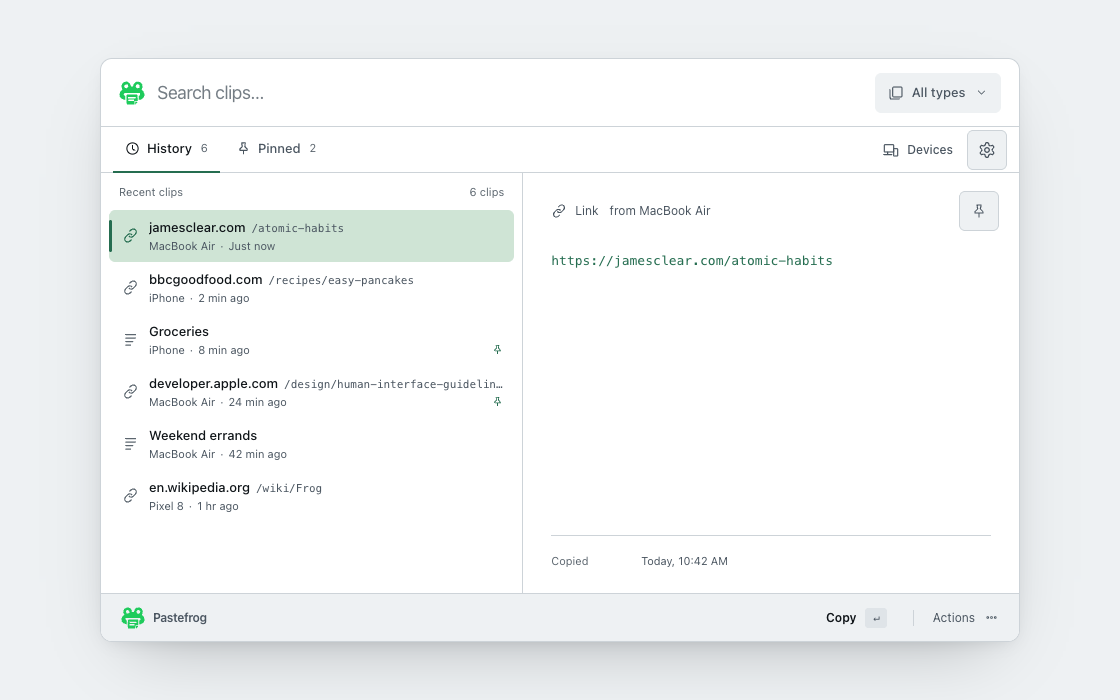
 Search clips…
Recent clips
Send a copy from your Mac
Use the normal Copy command in the app you’re working in. Start with a short note or a link, then switch to another linked device. If the receiving device is a phone, open Pastefrog, inspect the received clip, and use Copy before pasting it into a suitable field. Both devices need an internet connection for a new copy to arrive.
Pastefrog also handles images and files. The receiving app must accept that content type. If you are checking your setup, a text copy makes it easier to separate a connection problem from an app that cannot accept an image or file.
Test the other direction too. Copy on your phone, then open Pastefrog or its keyboard there so it can read the copy. The iPhone and iPad and Android guides explain each phone’s limits.
Paste into the app you’re using
For your current copy, focus the destination field and use its normal Paste command. To reuse a saved clip, select it in Pastefrog and use Copy, then return to the destination app and paste.
Pastefrog’s paste shortcut can paste into the focused field. Use the shortcut shown in the app. macOS requires Accessibility permission for this action, so follow Pastefrog’s permission instructions before trying it.
If there is no focused field, or the field rejects the clip, Pastefrog leaves it on your clipboard. Focus a field that accepts the content and use Paste there. A clip that appears in Pastefrog has arrived even if the shortcut cannot insert it.
ClipboardTravel notes
Meet by the station entrance.
The tickets are in the shared folder.
Find an earlier copy
Free keeps the latest clip across 2 devices. Sync costs $10 once and does the same across 5 devices. Each new copy replaces the previous current clip. Neither plan keeps an archive to search.
Pro costs $1.99 a month and includes 25 GB of encrypted history across 10 devices while active. Search the clip list for a word you remember, then open a result and copy it again. Search and image text recognition run on your device.
Your latest clip is separate from saved history. If your Mac was offline, Free and Sync receive the current clip when they reconnect. Pro also catches up every missed clip in history. See how history and reconnecting work.
ClipboardMeet by the station entrance.
iPhone · 2 minutes agoCheck the departure station before leaving.
MacBook · YesterdayKeep the clips you reuse
With Pro, open a clip’s actions and choose Pin. Use the Pinned view when you want that address, note, or link again. Unpin it when you no longer need it close at hand.
Pro also includes snippets for reusable text. Pins and snippets belong to paid history, so they are not a permanent backup after Pro ends. Read what happens to history when a plan ends before cancelling or letting a trial finish.
Find out where a copy stopped
- Check the source. Copy a new short note. If it starts on a phone, open Pastefrog there after copying.
- Check the connection. Both devices must use the same account and appear in its linked devices list. Check the last sent and received times and bring both devices online.
- Check the destination. If the clip is visible in Pastefrog on your Mac, test Copy followed by the destination app’s normal Paste command. For focused pasting, check Accessibility permission.
- Check the content. On Free and Sync, each image and each file can be up to 25 MB. Pro has no per-clip size or clip-count cap.
A work Mac may restrict installation or Accessibility permission. If a required setting is locked, ask your administrator. For a repeatable problem, record the app versions and the steps that failed without sending the clip itself.
Replace a Mac or remove a lost one
Link a replacement Mac with your signed-in phone, or use an email code and your recovery key when no linked device is available. The email code confirms your account. Your recovery key lets the replacement read your encrypted clips.
Pro can restore retained history. Free and Sync restore the current clip. If a Mac is lost, unlink it from the devices list on another device so it loses access to new copies.
Keep the recovery key private. Losing every linked device and the key means your encrypted clips cannot be recovered. Pastefrog’s servers cannot read them. Passwords and codes are kept as copied, so link only devices you control.
Follow the recovery guide before replacing your last linked device.