Install and link your computer
Choose the AppImage or Debian package on the download page. Use the package that suits your distribution, then open Pastefrog and follow the sign-in, linking, and permission instructions for your desktop.
If you already have a signed-in phone, use it to scan the QR code shown on the Linux computer. If this is your first device, sign in with Google or an email code and save your recovery key. When linking a phone later, the computer shows the code and the phone scans it.
Every plan requires an account. Pastefrog saves and syncs nothing until sign-in and linking are complete. The email-code and recovery-key fallback lets you link when no other device is at hand.
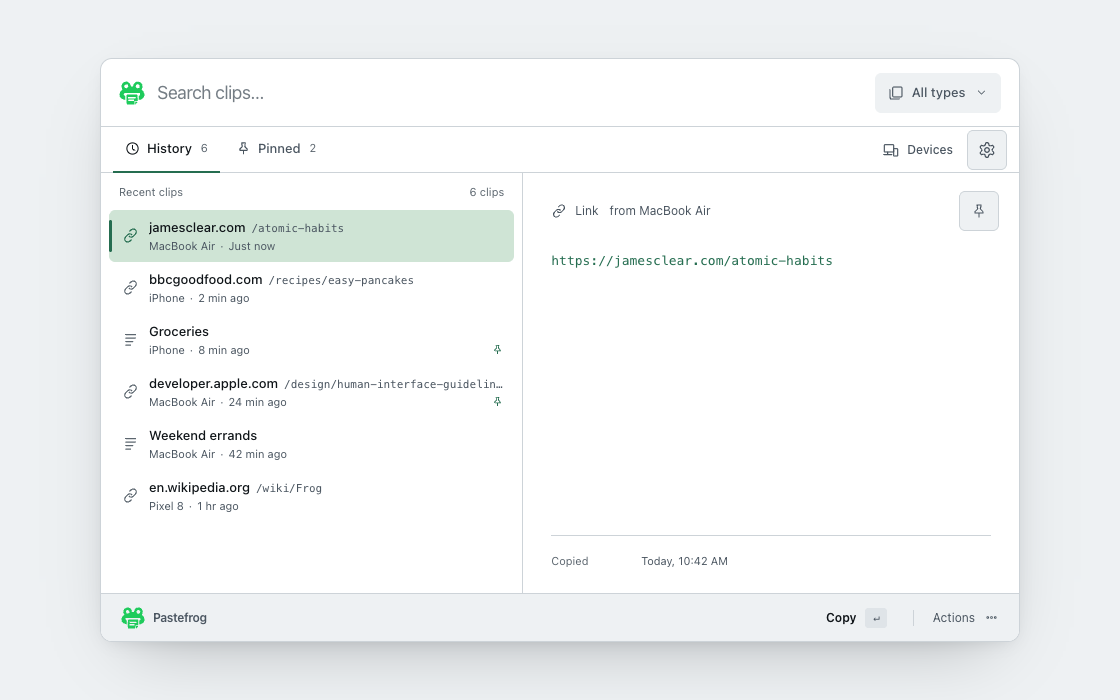
 Search clips…
Recent clips
Capture a copy on your desktop
Copy a short note using the source app’s normal Copy command. Follow the capture instructions Pastefrog shows for your desktop. On a receiving phone, open Pastefrog, inspect the received clip, and use Copy before pasting it in the destination app. Keep both linked devices online.
On GNOME Wayland, use explicit clipboard capture. Do not rely on background capture. Wayland desktops expose different clipboard capabilities, so a workflow that works on one desktop may need an explicit action on another.
Test the reverse direction with a second short note. If it starts on a phone, open Pastefrog or its keyboard there after copying. Read the iPhone and iPad or Android guide for its capture options.
Paste with the access your desktop allows
For a received copy, focus a field that accepts it and use the destination app’s normal Paste command. To reuse a saved clip, select it in Pastefrog and choose Copy before returning to that app.
Global shortcuts and pasting directly into another app depend on your desktop’s support and permissions. Under Wayland, these actions use desktop portals, and some desktops block them. Follow Pastefrog’s instructions for your environment rather than assuming a shortcut works everywhere.
If direct paste is unavailable, Pastefrog puts the clip on your clipboard so you can use the destination app’s normal Paste command. Check whether the clip is visible in Pastefrog before treating a shortcut problem as a sync problem.
ClipboardTravel notes
Meet by the station entrance.
The tickets are in the shared folder.
Search your saved copies
Free keeps the current clip across 2 devices. Sync costs $10 once and increases that to 5 devices. A new copy replaces the previous current clip, so these plans do not provide an archive of previous copies.
Pro costs $1.99 a month and includes 25 GB of encrypted history across 10 devices while active. Search for a word you remember, open a matching clip, and copy it again. Search and image text recognition run on your device.
When Linux reconnects, Free and Sync get the current clip. Pro also gets every clip missed while offline, saved in history. Your latest clip remains separate. Read how history, reconnecting, and restore work.
ClipboardMeet by the station entrance.
iPhone · 2 minutes agoCheck the departure station before leaving.
Linux computer · YesterdayKeep reusable clips close
With Pro, choose Pin from a saved clip’s actions. Open Pinned to find it without searching the full list. Copy a pinned clip to use it again, or unpin it when it no longer needs a place in that list.
Pro also includes snippets for reusable text. Pins and snippets are part of paid history. Export what you need before Pro ends, because paid history is deleted when the paid period ends.
Separate capture, sync, and paste failures
- Capture. Copy a short note and use explicit capture on GNOME Wayland. If the source is a phone, open Pastefrog there after copying.
- Sync. Confirm both devices use the same account, are linked, and are online. Check their last sent and received times in the devices list.
- Paste. If the clip appears in Pastefrog, use Copy and normal Paste. Check the desktop’s portal permissions separately for global shortcuts and direct paste.
- Content. Free and Sync allow each image and file up to 25 MB. Pro has no per-clip size or clip-count cap.
For a Linux support request, include your distribution, desktop, whether the session uses Wayland, app versions, and the failing steps. Do not include clipboard contents, passwords, recovery keys, or linking codes.
Recover on a replacement computer
Use a signed-in phone to scan the replacement computer’s QR code. If you have no linked device available, use an email code and your recovery key. The key allows the new computer to read your encrypted clips.
Pro restores retained history, while Free and Sync restore the current clip. Unlink a lost computer from another linked device so it stops receiving new copies. Switching accounts clears the previous account’s history from that computer.
Keep access to your recovery key. If you lose every linked device and the key, your clips cannot be recovered. Pastefrog’s servers cannot read their contents, including passwords and codes saved exactly as copied.
Read the recovery guide before replacing or wiping your last linked computer.